
Your whole App Store page, finished in one Mac app.

Rifinita is a Mac app for developers who ship on their own. It makes the screenshots and the icon, finds the keywords and the name, translates the app and its listing into 50 languages, prices every storefront, and sends it all to App Store Connect.

Download on the Mac App Store

Free to try on one project. Needs macOS 26 or later.

See what it does

Coming soon to the Mac App Store. Free to try on one project.

and 23 more
Wishfreeze: Stop Impulse Buys
Wishlist Timer & Money Saver
Get
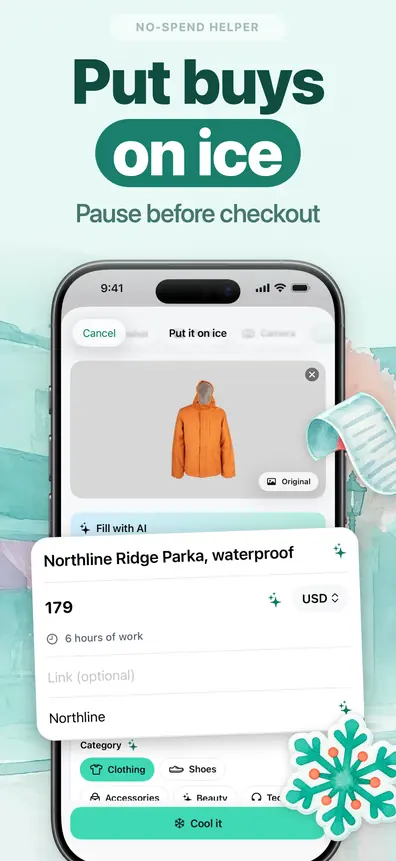
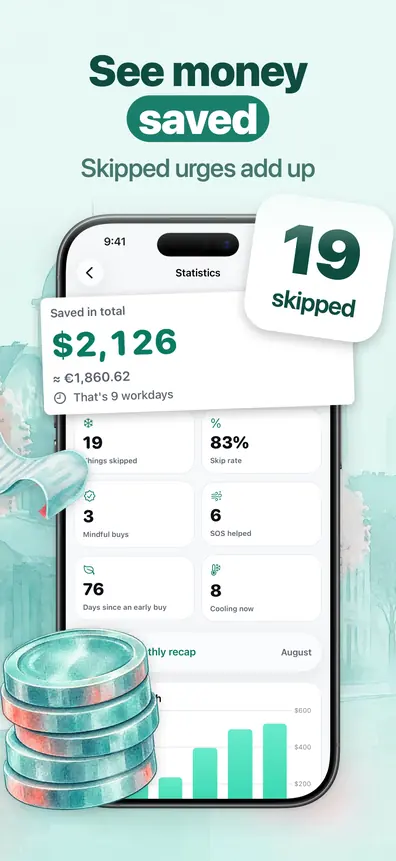
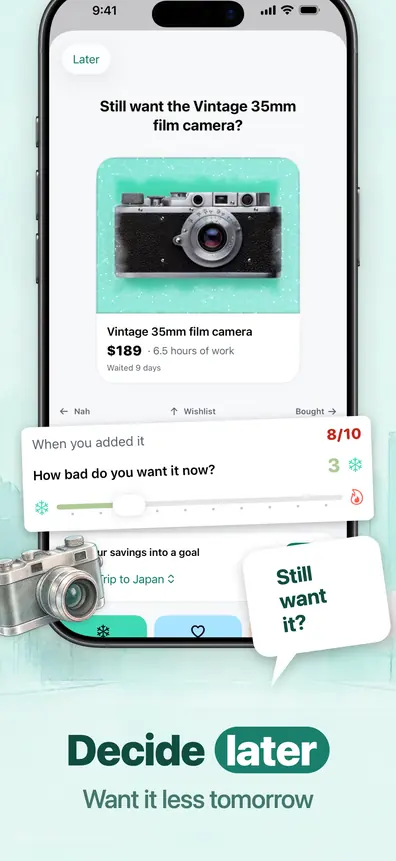
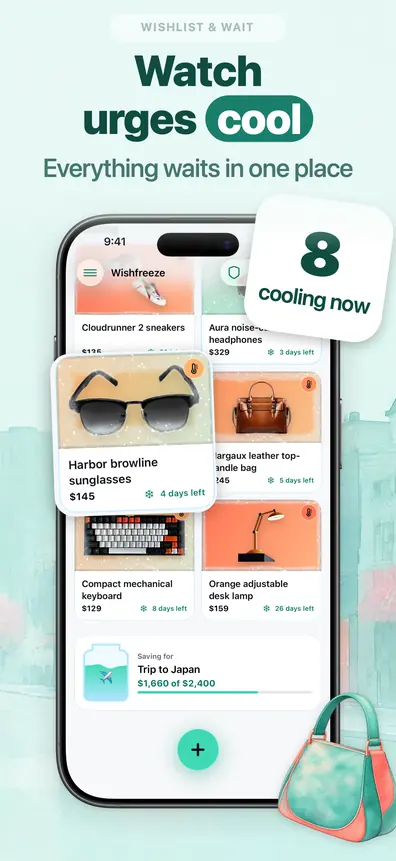
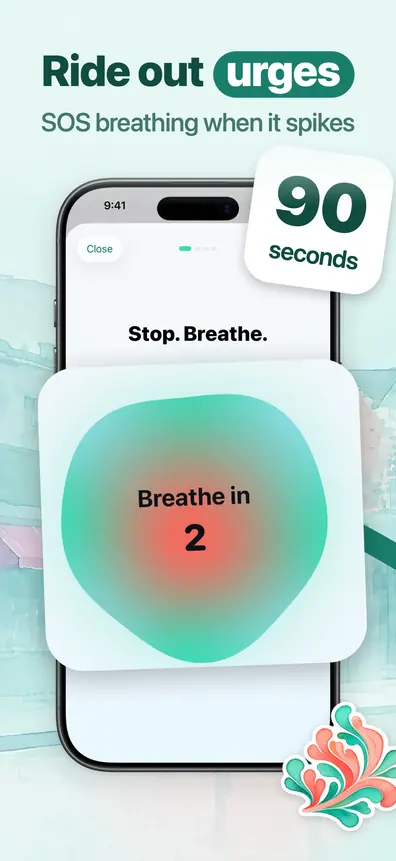
Wishfreeze App Store screenshot: Put buys on ice Wishfreeze App Store screenshot: See money saved Wishfreeze App Store screenshot: Decide later Wishfreeze App Store screenshot: Watch urges cool Wishfreeze App Store screenshot: Ask before buying Wishfreeze App Store screenshot: Ride out urges

Wishfreeze is one of our own apps. Rifinita built this screenshot set for it in 32 languages. Nine of them are shown here.

A store page asks for more than translated strings: screenshots for every device, keywords for every market, a price for every country and replies in languages you don’t read. Rifinita keeps all of it in one window.

Build App Store screenshots once

Drop in raw screens from the simulator. Rifinita lays out a set with headlines, device frames and backgrounds, and you can change any of it in the editor. The same design carries over to other iPhone sizes, iPad and Mac, and each caption is set again in every language before upload.

  • Studio looks, AI scenes or composed poster layouts
  • Uploads to App Store Connect or exports PNG files
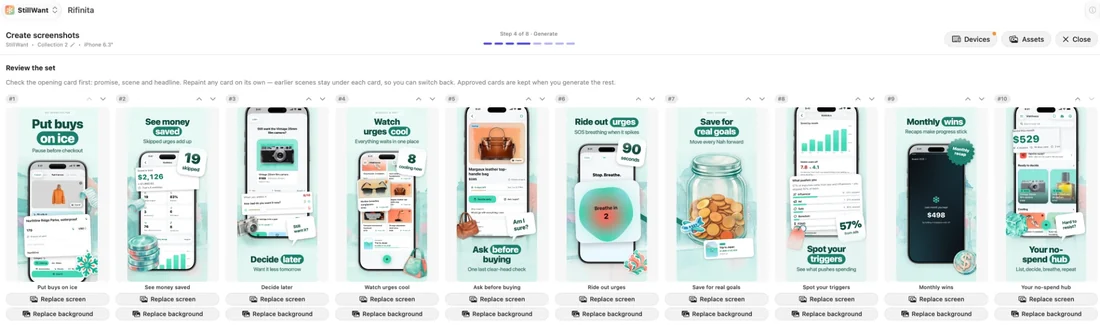
The screenshot wizard in Rifinita with a finished set of ten App Store screenshots for our own app Wishfreeze: painted backgrounds, device frames and headlines such as Put buys on ice and See money saved.
The set Rifinita built for Wishfreeze, one of our own apps.

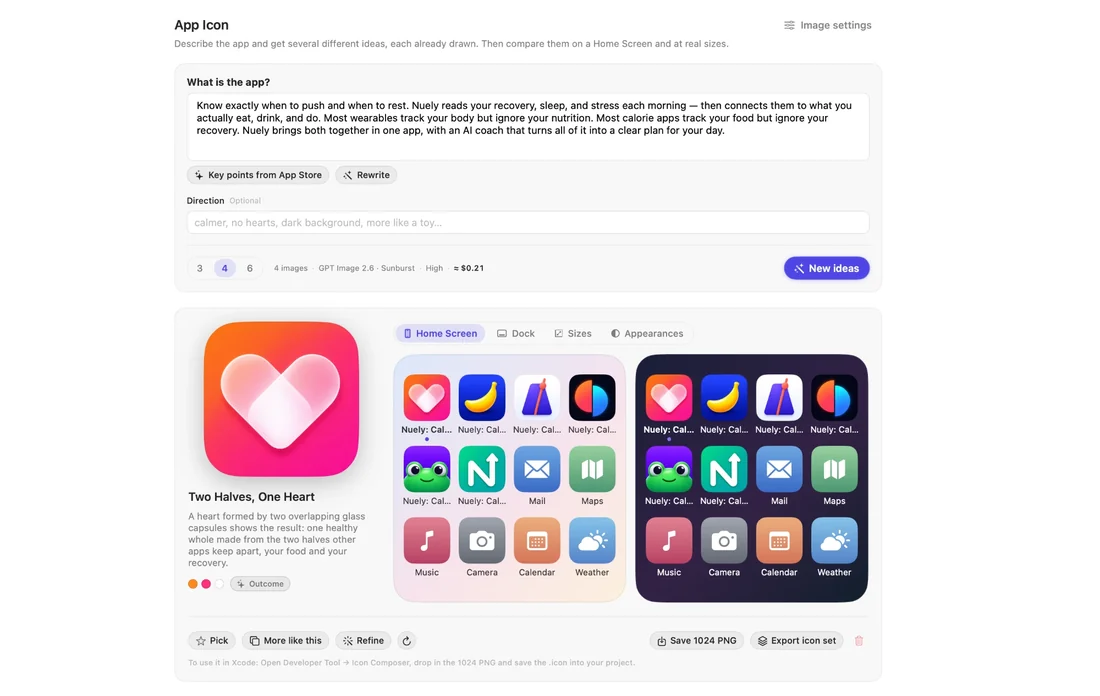
Draw an app icon from a description

Describe the app in a sentence, or pull the description from your store page. Rifinita draws several different ideas with the image model you connected, then shows each one where it will live: on a Home Screen, in the Dock, at small sizes, and in the dark, mono and tinted appearances. Pick one, ask for more like it, or refine it with a note.

  • Three, four or six ideas per run, with the cost shown before you start
  • Saves a 1024 pixel PNG or exports an icon set
The App Icon section of Rifinita with our own app Nuely: the app description, a chosen heart icon made of two glass capsules, and its preview among other icons on a light and a dark Home Screen.

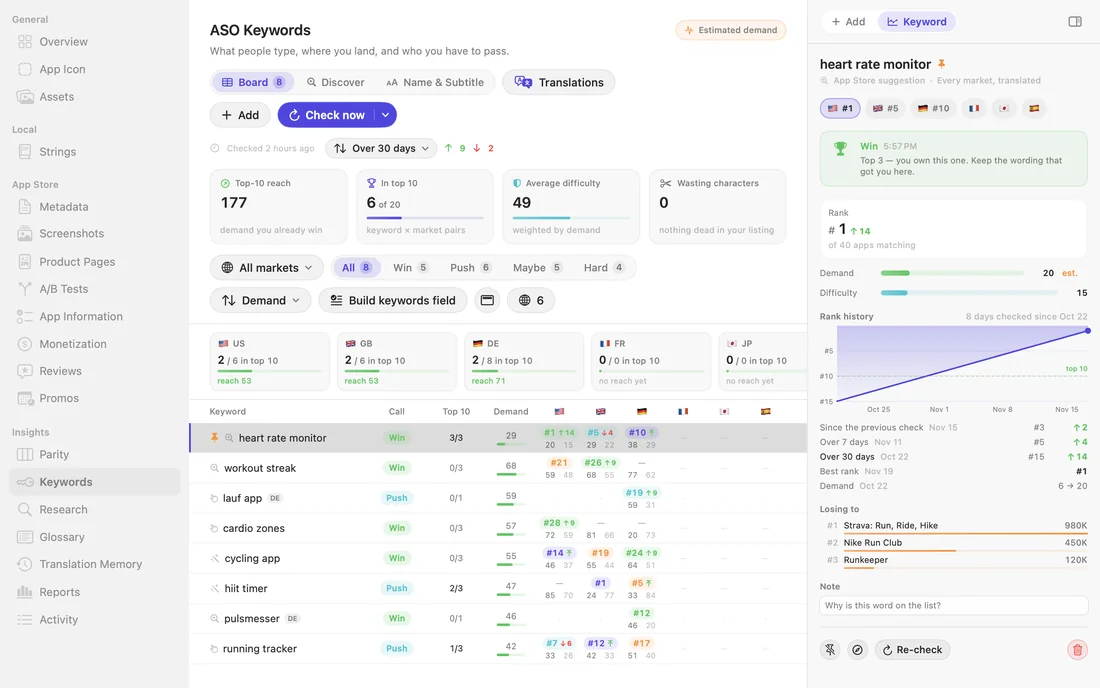
Track your keyword ranks in each market

Add the phrases people search for and Rifinita checks your position in every storefront you follow and keeps the history. The board shows which words you already win, which deserve a push and which apps sit above you, then builds the keyword field for each locale from the words that earn their place.

  • Phrase ideas from the App Store’s own suggestions
  • English notes under keywords in languages you don’t read
The Keywords board in Rifinita: a table of search phrases with ranks per country, and a side panel for one keyword showing rank number 1, a rank history chart and the apps it is losing to.

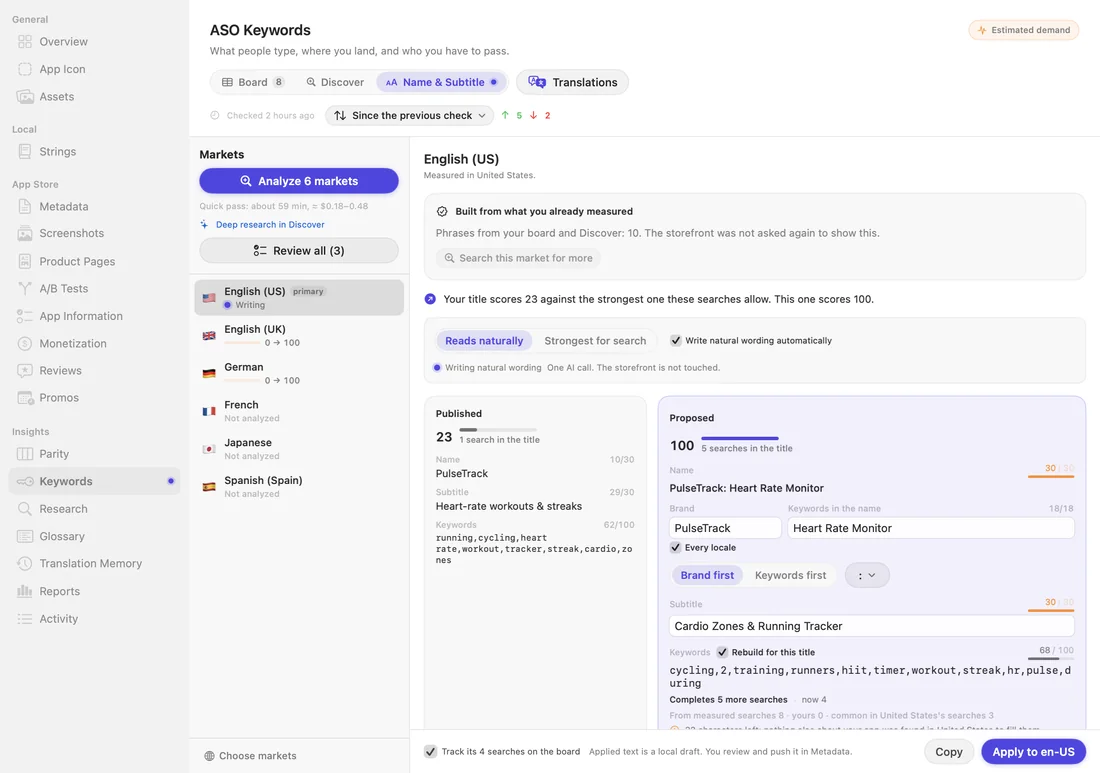
Find a name and subtitle that rank

The 30 characters of your name and the 30 of your subtitle are the words App Store search weighs most. Rifinita measures what people in each market search for, scores your published title against the strongest one those searches allow, and proposes a better one. Take the wording that reads naturally or the one that is strongest for search, then review every market in one sheet.

  • For a new app, niche research suggests names, subtitles and words to avoid
  • A proposal stays a local draft until you send it
The Name and Subtitle screen in Rifinita: a list of markets, the published title scoring 23 next to a proposed title scoring 100, with name, subtitle and keyword fields.

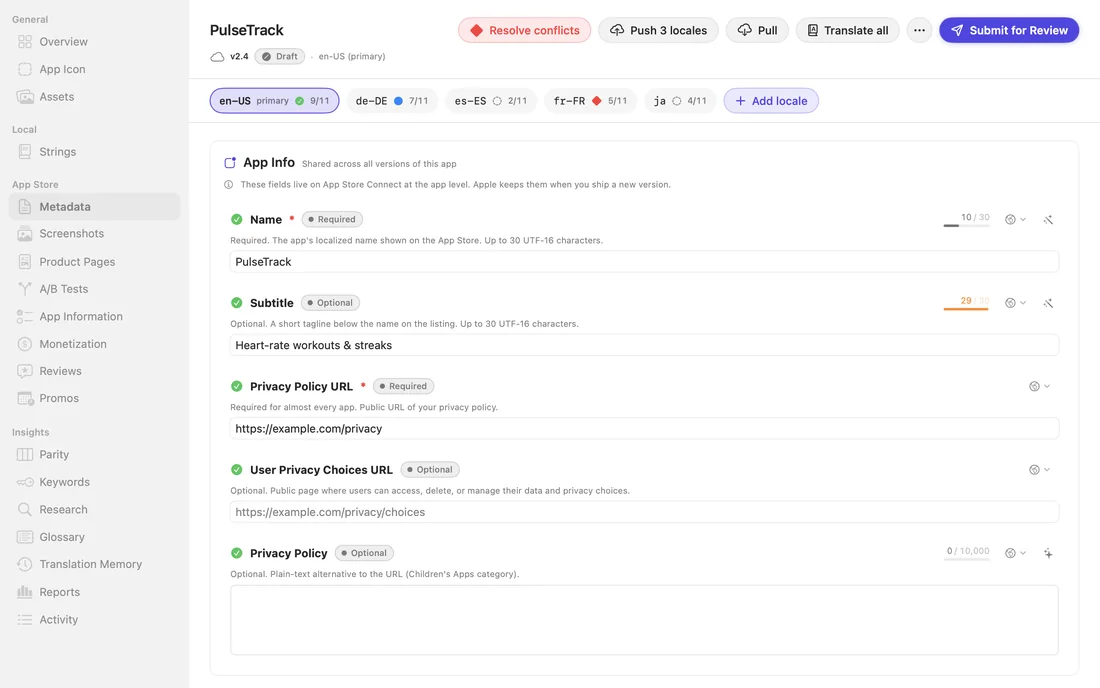
Write and translate the listing text

Name, subtitle, keywords, promotional text, description and What’s New sit in one editor for every locale, each with its character count. Fill one language, translate the rest, and see which locales still miss a field. When the version is ready, submit it for review from the same window.

  • Pulls and pushes with conflict checks, so an edit made on the website is not overwritten
  • What’s New drafted from your changelog
The Metadata editor in Rifinita: locale tabs with fill counts, name, subtitle and privacy URL fields with character counters, and buttons to push locales, translate all and submit for review.

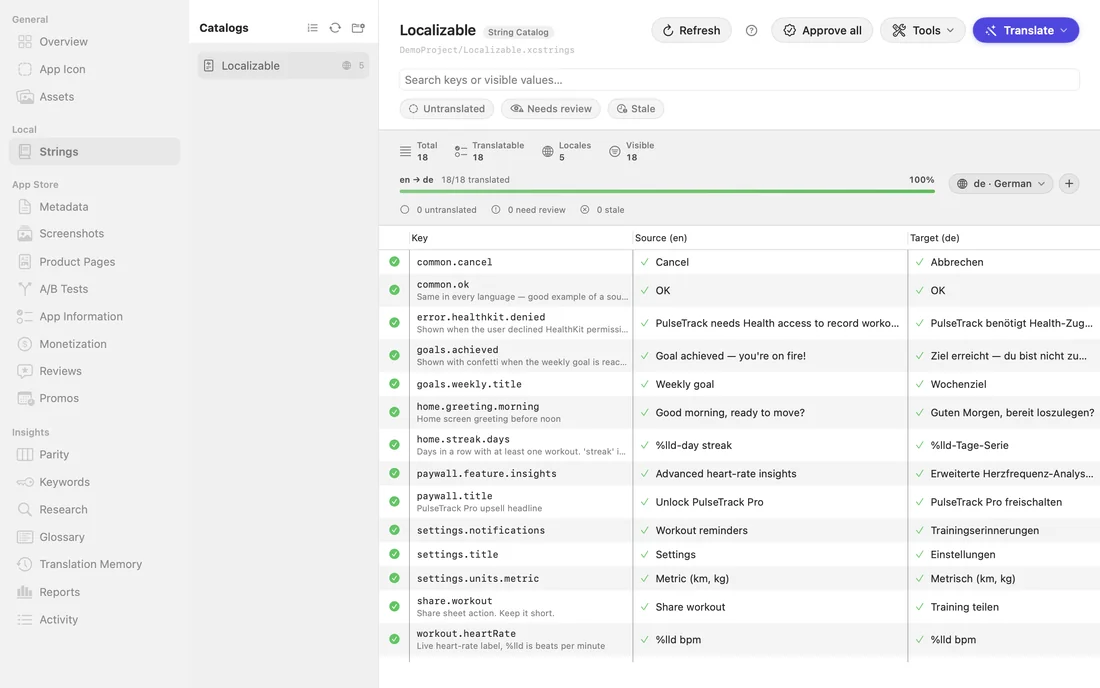
Translate your Xcode string catalogs

Open your Xcode project and Rifinita finds its string catalogs. Translate them with the AI provider you already use, with DeepL, or with the translator built into macOS, which is free and works offline. A glossary keeps product terms consistent, and anything you approved before is reused from translation memory.

  • Reads .xcstrings and .strings, plurals and device variations included
  • Exports XLIFF for a human translator and imports it back
The Strings section of Rifinita: a string catalog with English source text and German translations side by side, 18 of 18 translated.

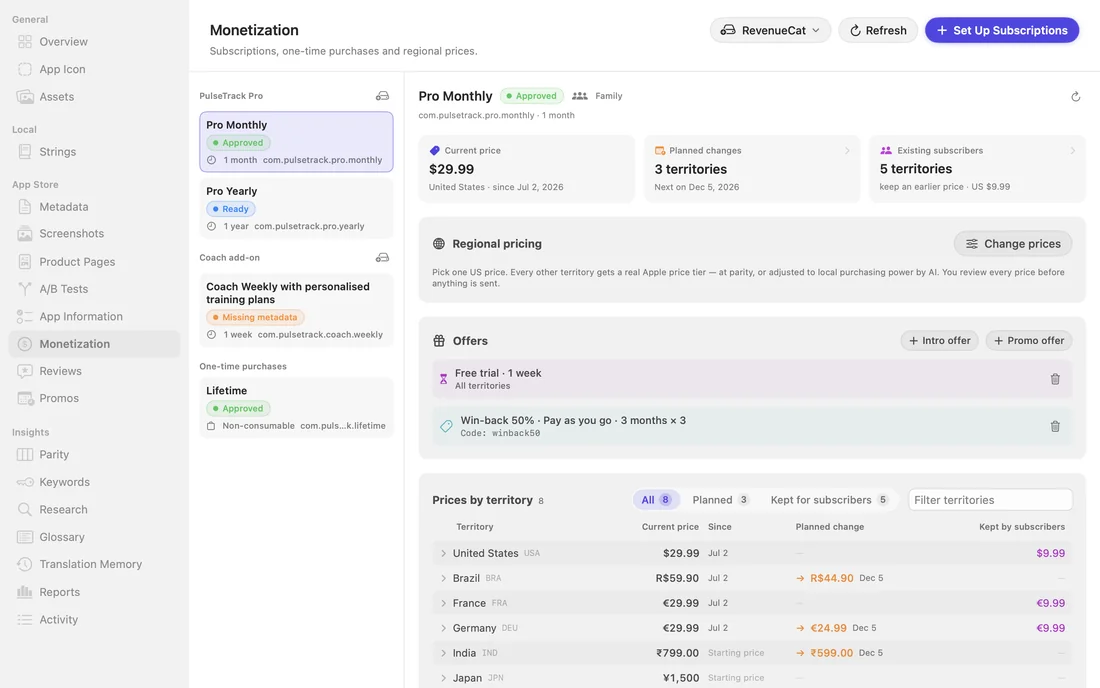
Set a fair price in 175 storefronts

Pick one US price. Rifinita proposes the rest, either at Apple’s parity or adjusted to local purchasing power, and always on a price tier Apple really offers. You review the list, choose a start date and decide whether current subscribers keep their old price.

  • Subscriptions and one time purchases
  • Free trials, promo offers and win back offers
The Monetization section of Rifinita: a monthly subscription with its current price, planned changes, offers and a table of prices by territory.

Reply to reviews in languages you don’t read

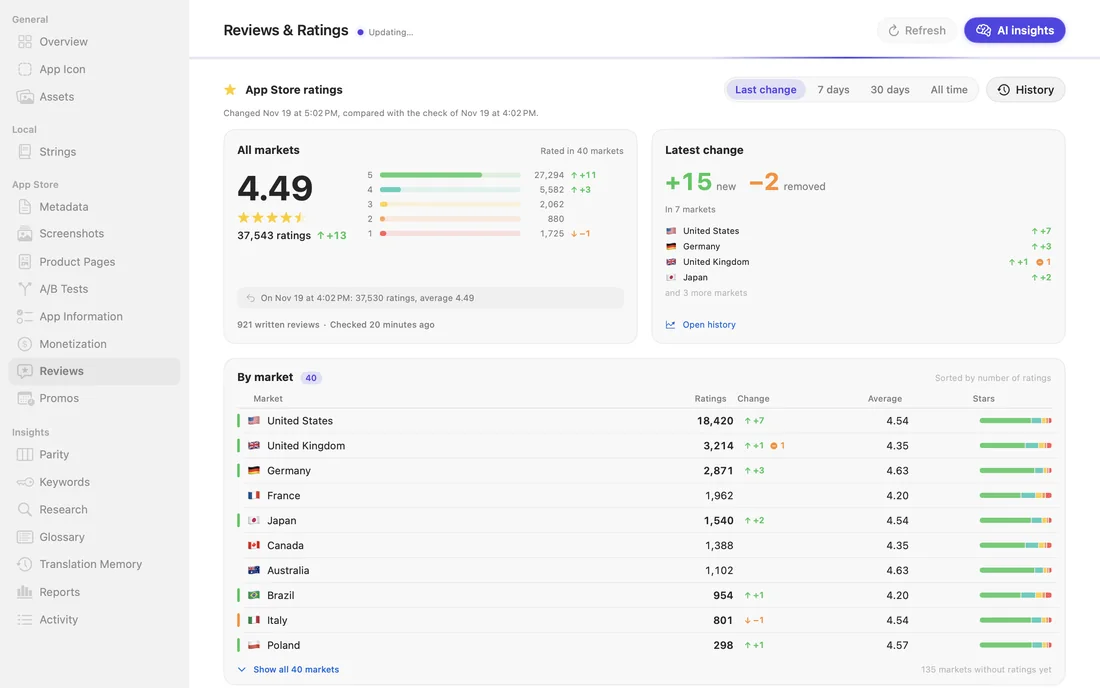
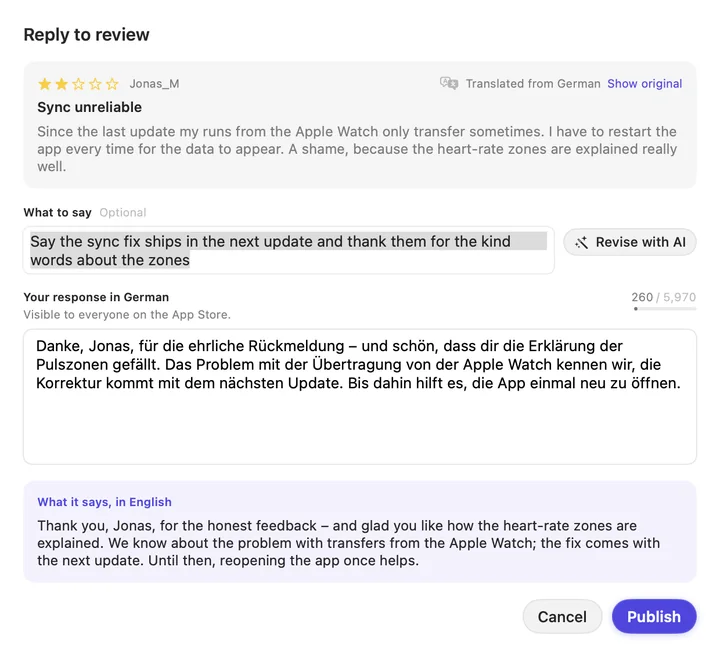
Reviews arrive translated. Say what you want to tell the reviewer and Rifinita drafts the reply in their language, with an English version underneath so you know what you’re publishing. Ratings are tracked per market, so when the average moves you can see which country moved it.

Reviews and Ratings in Rifinita: an average of 4.49 across all markets, the latest change, and ratings listed by country.
A reply sheet for a German two star review: the review translated to English, a reply drafted in German and what the reply says in English.

Also in the same window

Product pages and A/B tests
Custom product pages and product page optimization tests, set up without the App Store Connect website.
Niche research
Who already owns a niche, which words are still free, and the risks to know before you name the app.
Subscriptions and offers
Groups, plans, free trials, promo and win back offers, drafted by AI and reviewed by you.
Parity
Finds languages your app already speaks that your store page doesn’t.
Scheduled promo text
Write promotional text ahead of a sale and have it go live on the date you set.
Reports
Translation progress, App Store sales and an estimate of what your AI calls cost.

From Xcode project to store page

  1. Open your project

    Choose an Xcode project or a folder. Rifinita reads the string catalogs and the bundle ID. A demo project is included if you want to look around first.

  2. Connect what you have

    Add an App Store Connect API key to read and write your listing. An AI key is optional: the Mac’s own translator works without one.

  3. Review, then send

    Changes stay on your Mac as drafts. Nothing reaches App Store Connect until you send it.

Your keys, your Mac

Rifinita has no accounts and no server that sees your strings. Requests go from your Mac straight to Apple and to the provider you choose.

On this Mac

Apple’s translator runs on the device, free and offline. It does not know every App Store language. The ones it lacks go to whichever of the other two you have set up.

A local AI server

LM Studio or Ollama running on your own machine. Nothing leaves it.

Your own API key

OpenAI, Claude, Gemini or DeepL. You pay the provider at their rates and Rifinita adds nothing on top. Keys live in the macOS Keychain.

Free to look around, Pro to ship

The free version opens one project, shows every section and lets you edit by hand. Each AI tool gives you one free run. Pro removes the limits and unlocks sending to App Store Connect, exports, more projects and the keyword board.

US prices. Your storefront shows the local one. Purchases go through the Mac App Store, and subscriptions can be cancelled in your Apple account settings. The same list is available as plain text.

Questions

Do I need a paid AI plan?

No. The translator built into macOS is free, and so are keyword ranks and ratings, which need no key at all. For languages the Mac’s translator lacks, and for AI screenshots, icons, name proposals and review replies, you add your own API key from OpenAI, Anthropic or Google, or point Rifinita at a local server such as LM Studio. You pay the provider directly.

Does my project pass through your servers?

No. Rifinita has no server for your content. Strings and screenshots go from your Mac to Apple and to the AI provider you picked. Purchases are handled by Apple, and RevenueCat confirms your subscription. Neither sees your projects.

Will it change my App Store listing on its own?

No. Edits are kept as drafts on your Mac and reach App Store Connect when you send them. The only things that run on a timer are the ones you schedule yourself, such as a promo text.

Which screenshot sizes does it make?

iPhone 6.3, 6.9 and 6.7 inch, both screens of iPhone Duo, iPad 13 inch and Mac at 2880 by 1800. iPhone and iPad sets can be portrait or landscape. You design one set and Rifinita rebuilds it for the other devices. Apple Watch screenshots are uploaded as they are. The screenshot size guide lists every size in pixels.

What do I get for free?

One project with every section open, editing by hand, and one run of each AI tool: 50 string translations, one screenshot set, one keyword search, one icon run and one price proposal. Sending to App Store Connect and exporting need Pro.

Is there a trial?

The monthly plan starts with a 3 day free trial for new subscribers. The yearly and lifetime plans have no trial, so use the free version to try things first.

Can a human translator check the result?

Yes. Export a language as XLIFF, send it to your translator and import the file back. You can also edit any string or listing field by hand.

What do I need to run it?

A Mac on macOS 26 or later. Anything that reads or writes your listing needs an App Store Connect API key, which you create for free in App Store Connect.

rifinita

Italian adjective, said ree-fee-NEE-tah. Finished: given its last careful pass, the way a tailor finishes a jacket.

Download on the Mac App Store

Coming soon to the Mac App Store.